Step 1: Proposal creation
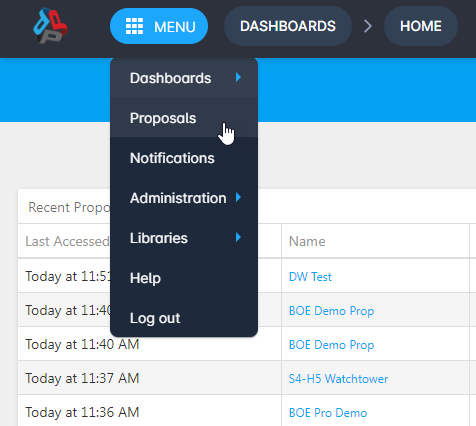
To start creating a blank proposal, click MENU > Proposals.
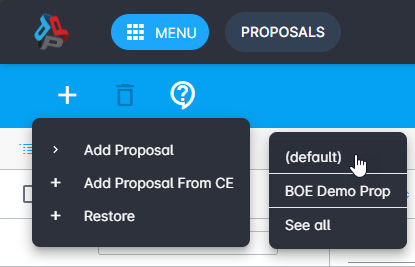
Click Add > Add Proposal > (default).
Properties
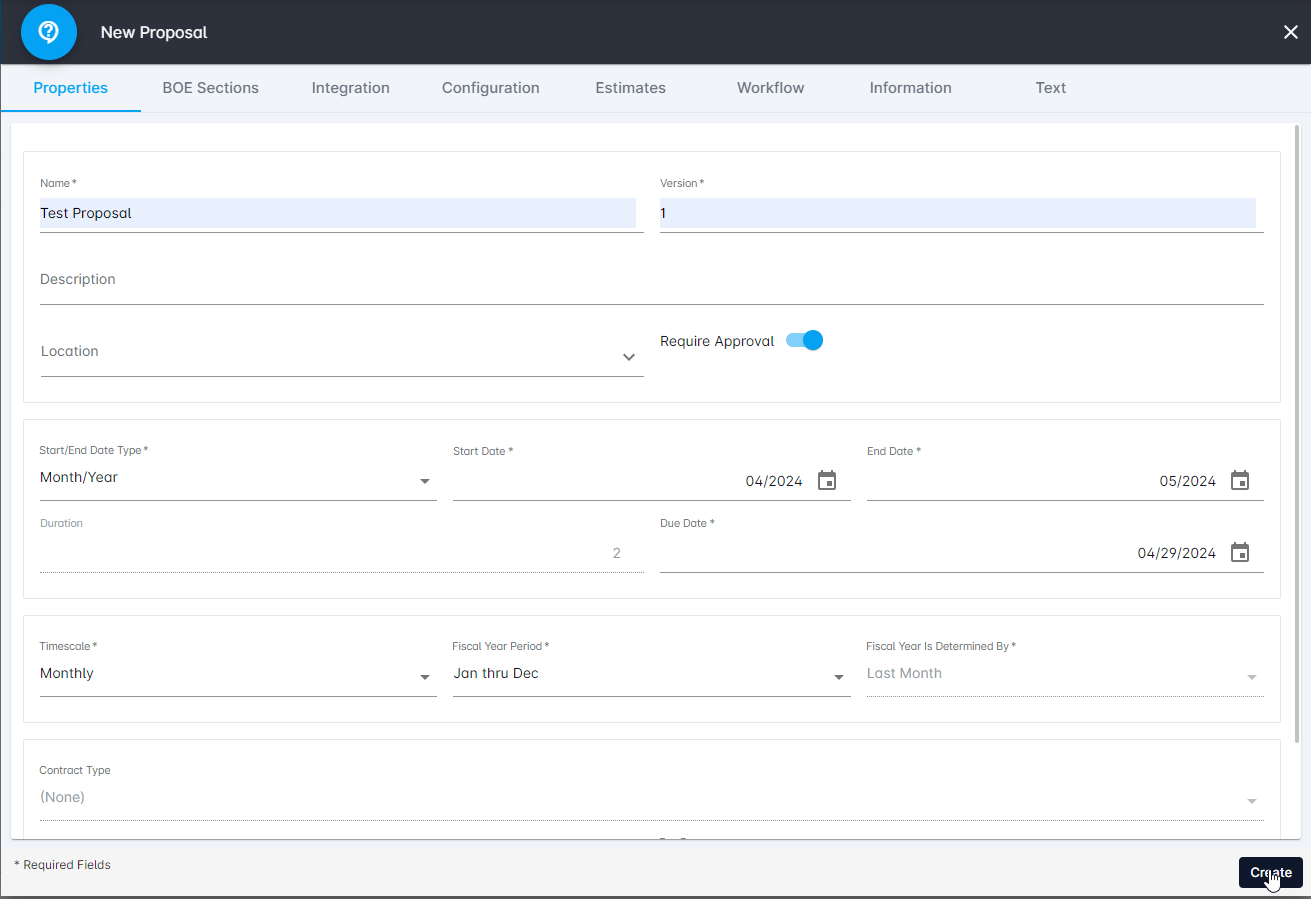
After adding a proposal, the proposal settings open to the Properties tab. Enter the Name, Version, Start Date, and End Date, and click Create.
BOE Sections
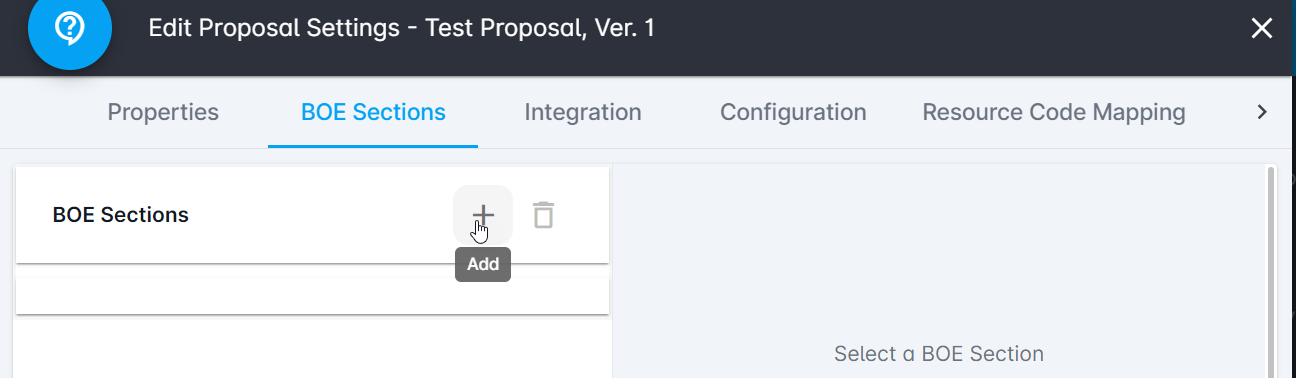
The BOE Sections tab is for setting up a uniform structure and format for any BOE in your proposal.
To create a section, click Add > (default). Enter the Name, set Data Type to Text, and click Create.
Note: You can create a section template in the BOE Section Library and add it to multiple proposals.
Integration
On the Integration tab, you can pull information from a ProPricer Contractor Edition database into BOE Pro.
To access and retrieve external data, connect to your data server with ProPricer CE credentials.
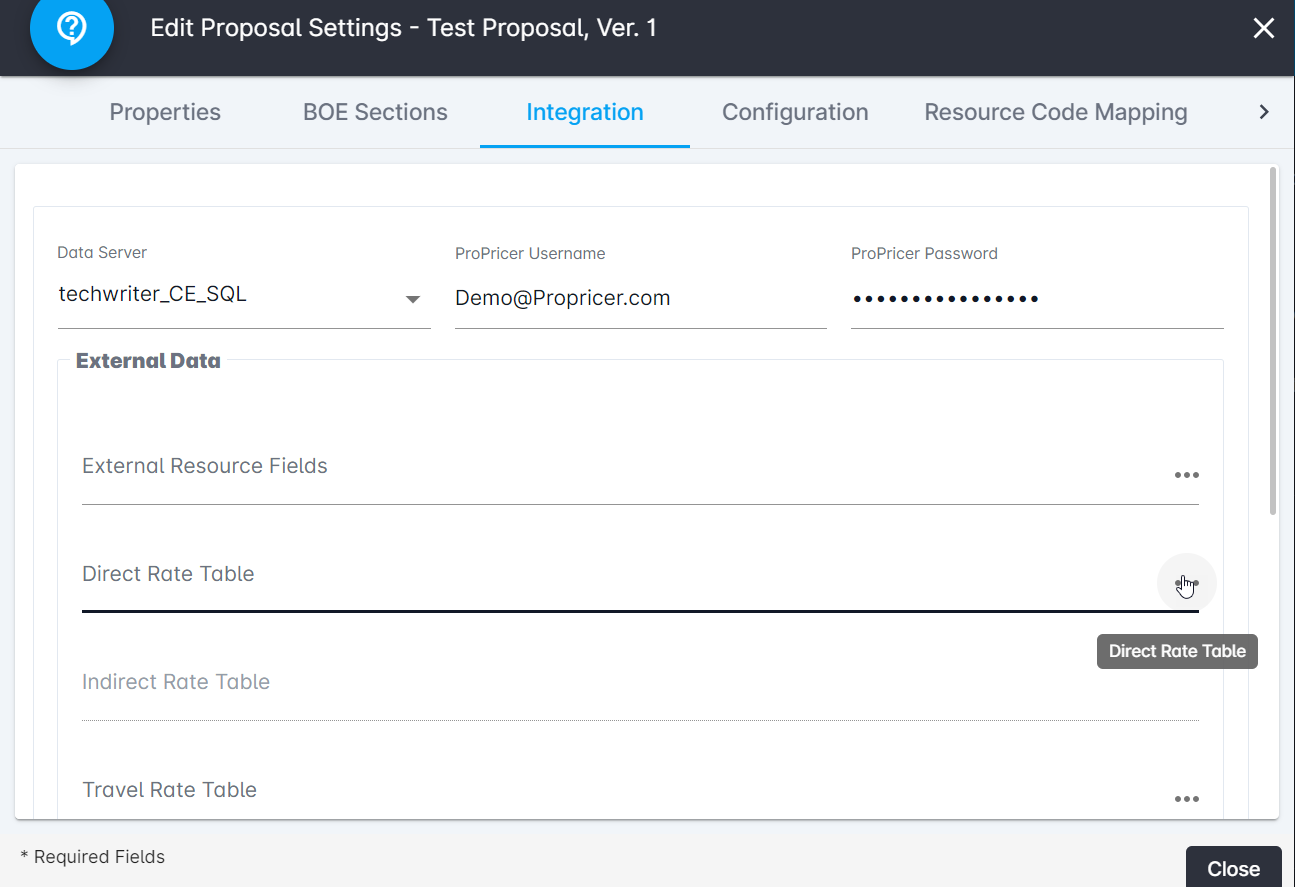
Select a direct rate table to provide the resources in your proposal. The indirect rate table attached to it in ProPricer CE is selected automatically.
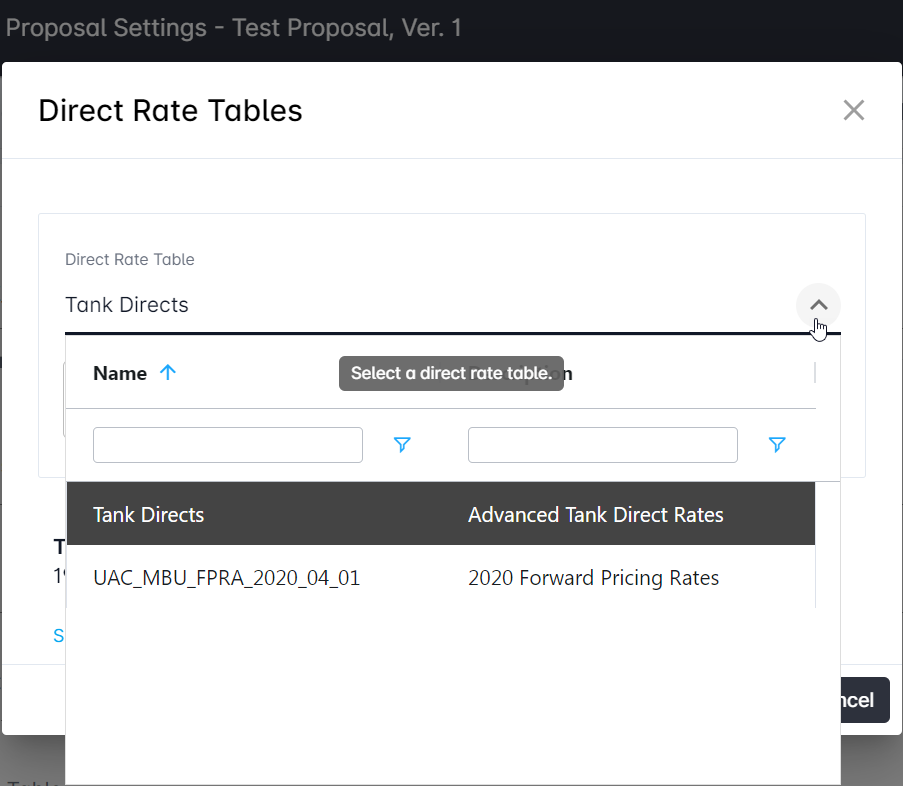
Note: You can estimate with resource codes instead of resources while your proposal has no direct rate table. Once a direct rate table is eventually selected, you can map resource codes to the table's resources.
Workflow
On the Workflow tab, you can enable and set up a proposal's workflow. This helps to keep track of each BOE and who is responsible for it at every step of the process.
To create a workflow step, double-click an empty cell in the grid. Provide the step's Name, Due Date, and Associated Users. Click Apply and select Workflow Enabled (BOE).
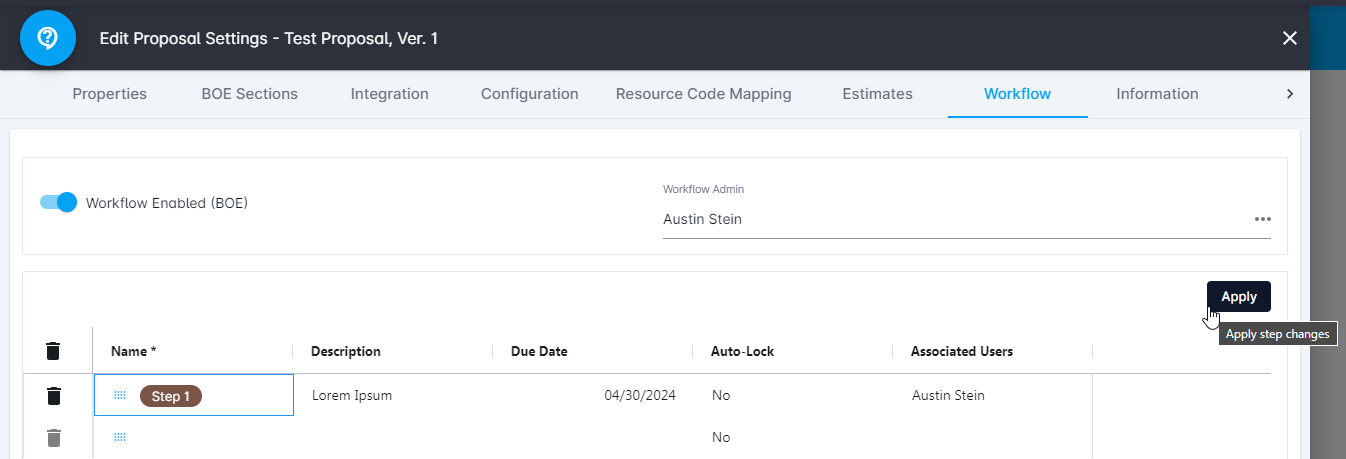
Note: You can apply the same workflow process to multiple proposals by setting up the workflow in a proposal template.
For assistance with BOE Pro, please visit the Deltek Support Center